# iOS > App Privacy details configuration
Source: https://help-display-sdk.equativ.com/ios/appprivacydetails.html
Apple now requires you to disclose user data that your app is collecting, and the purpose of this collection.
You will need to provide these information when submitting a new app or and app update starting _December 8th, 2020_.
Since the SDK collects some user data, **you MUST declare in addition to the data collected by your app!**
You can retrieve the data collected by the SDK directly using the [_Xcode Privacy Report_](https://help-display-sdk.equativ.com/ios/appprivacydetails.html#privacy-report) or manually
by reading the [documentation below](https://help-display-sdk.equativ.com/ios/appprivacydetails.html#data-usage).
---
## Xcode Privacy Report
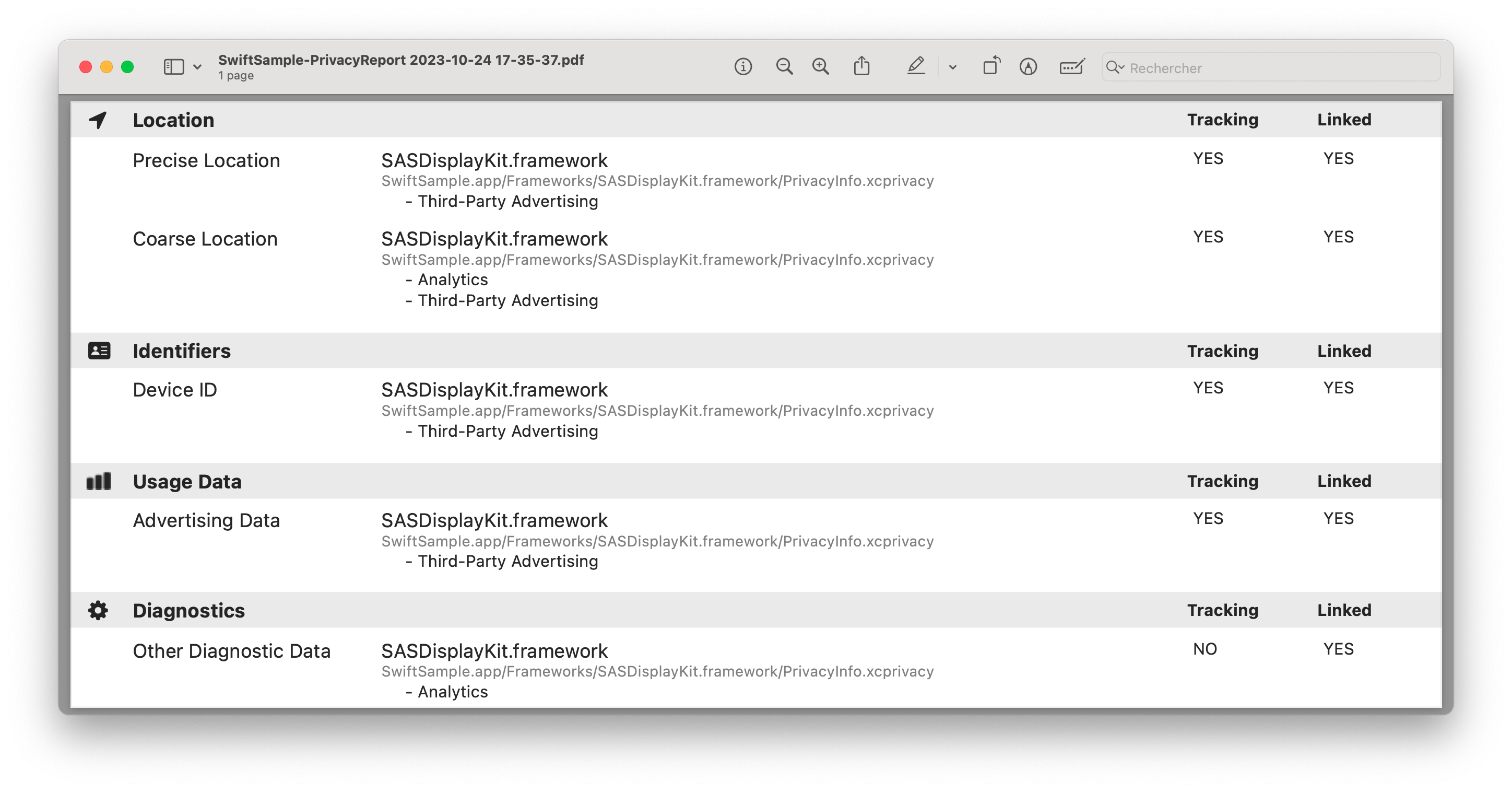
Starting with _Xcode 15_, it is possible to generate a _privacy report_ of your app. This privacy report can be useful to
fill the privacy form in _iTunes Connect_ when submitting your app.
To generate a _privacy report_, _build & archive_ your app, then right click the newly created build and choose _Generate Privacy Report_.
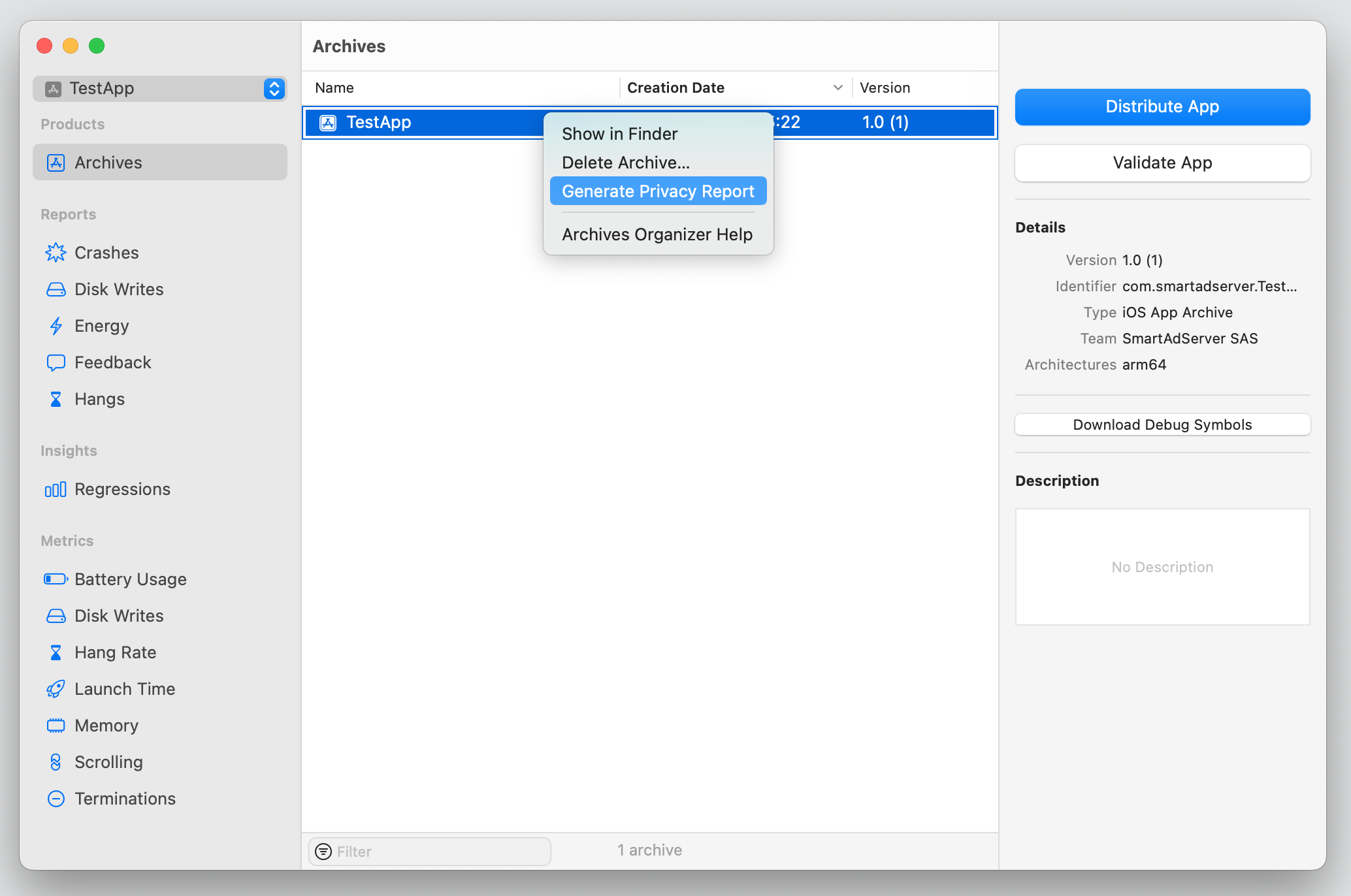
The _privacy report_ will automatically includes collected data & usage purposes of the **Equativ Display SDK** if you
are using the SDK version **7.23.0** or above.
## Data usage summary
This section summarize all data collected and processed by the **Equativ Display SDK**. You can use it to fill _iTunes Connect_ privacy page.
You can find the definition of all the data and purpose in [Apple documentation](https://developer.apple.com/app-store/app-privacy-details/).
| Data type | Status | Data usage purposes |
| ----------- | -------- | --------------------- |
| **Location** | | |
| Precise Location | **optional** (only necessary if `[automaticLocationDetectionAllowed](https://help-display-sdk.equativ.com/ios/API/Classes/SASConfiguration.html#/c:objc(cs)SASConfiguration(py)automaticLocationDetectionAllowed)` is enabled) | |
| Coarse Location | **REQUIRED** | - Third-Party Advertising
- Analytics
|
| **Identifiers** | | |
| Device ID | **REQUIRED** | |
| **Usage data** | | |
| Advertising Data | **REQUIRED** | |
| **Diagnostics** | | |
| Other Diagnostic Data | **REQUIRED** | |
The table below indicates which of these data are _used for tracking_ and are _linked to the user_.
| Data type | Linked to user | Used for tracking |
| ----------- | ---------------- | ------------------- |
| **Location** | | |
| Precise Location | **yes** | **yes** |
| Coarse Location | **yes** | **yes** |
| **Identifiers** | | |
| Device ID | **yes** | **yes** |
| **Usage data** | | |
| Advertising Data | **yes** | **yes** |
| **Usage data** | | |
| Diagnostics | **yes** | **no** |
If you need more details on how to use _iTunes Connect_ privacy page, check the [iTunes Connect configuration section](https://help-display-sdk.equativ.com/ios/appprivacydetails.html#itunes-connect).
## iTunes Connect configuration
This is a detailed guide on how to configure the privacy page of your app in _iTunes Connect_ when using the **Equativ Display SDK**.
The following information are only valid for the **Equativ Display SDK**:
you will also need to answer these questions for all your others third-party SDKs.
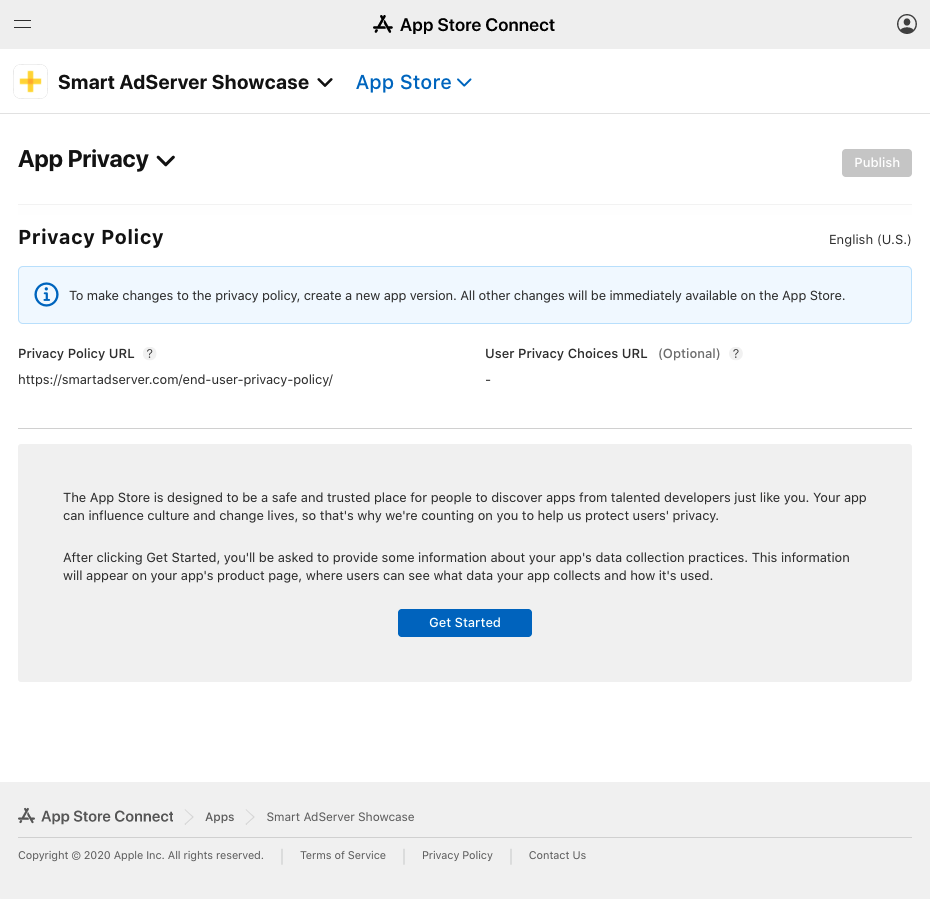
### Step 1: get started with App Privacy
Locate the _App Privacy_ page in _iTunes Connect_ for your app, then click on **Getting Started**.
### Step 2: enable data collection
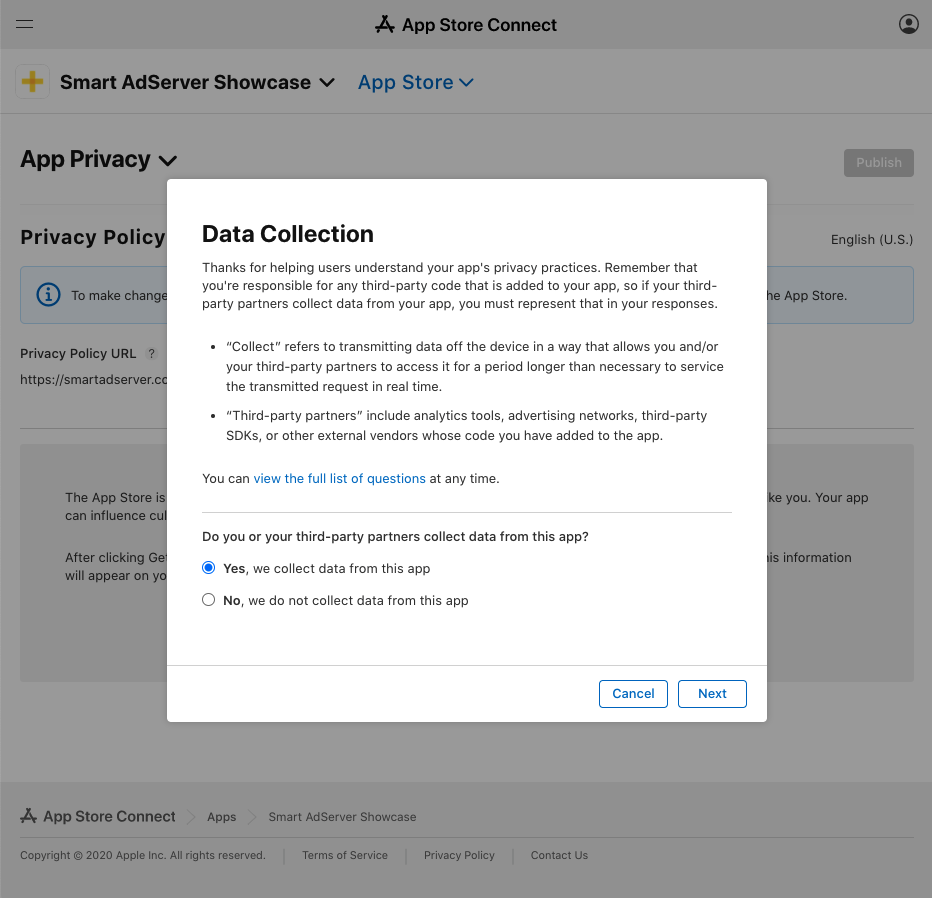
When asked if your app or third-party SDK collect any user data, answer **Yes, we collect user data from this app**.
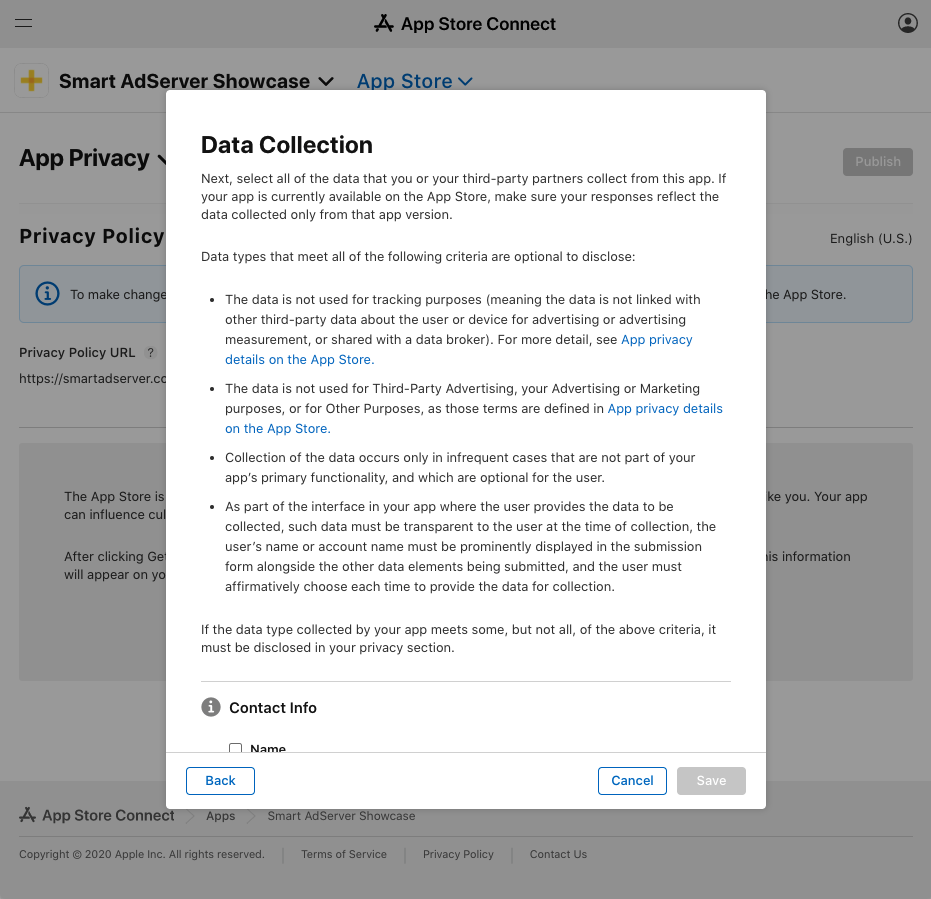
### Step 3: configure the type of user data
When prompted with a list of user data collected, select at least:
* **Coarse Location**
* **Device ID**
* **Advertising Data**
* **Other Diagnostic Data**
You should also select **Precise Location** if [`automaticLocationDetectionAllowed`](https://help-display-sdk.equativ.com/ios/API/Classes/SASConfiguration.html#/c:objc(cs)SASConfiguration(py)automaticLocationDetectionAllowed) is enabled in your app.
### Step 4: configure the purposes for each user data
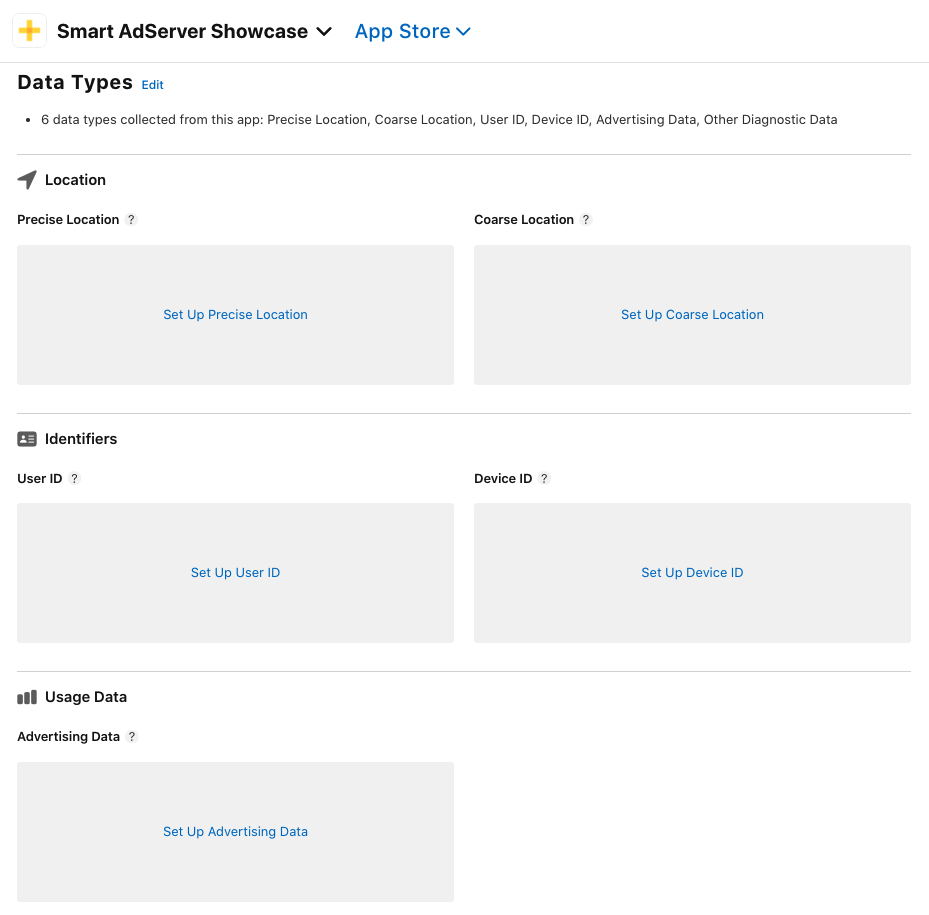
You will have to configure purposes for each data selected in the previous step.
### _Precise Location_ setup (if applicable)
Click on _Set up Precise Location_.
You will first be prompted with a screen asking you the purpose of this data collection. Choose **Third-Party Advertising**.
On the next screen, choose **Yes, precise location data collected from this app is linked to the user's identity**.
On the next screen, choose **Yes, we use precise location data for tracking puposes**.
### _Coarse Location_ setup
Click on _Set up Coarse Location_.
You will first be prompted with a screen asking you the purpose of this data collection. Choose **Third-Party Advertising** and **Analystics**.
On the next screen, choose **Yes, coarse location data collected from this app is linked to the user's identity**.
On the next screen, choose **Yes, we use coarse location data for tracking puposes**.
### _Device Identifier_ setup
Click on _Set up Device Identifier_.
You will first be prompted with a screen asking you the purpose of this data collection. Choose **Third-Party Advertising** and **Analystics**.
On the next screen, choose **Yes, device identifier data collected from this app is linked to the user's identity**.
On the next screen, choose **Yes, we use device identifier data for tracking puposes**.
### _Advertising Data_ setup
Click on _Set up Advertising Data_.
You will first be prompted with a screen asking you the purpose of this data collection. Choose **Third-Party Advertising** and **Analystics**.
On the next screen, choose **Yes, advertising data collected from this app is linked to the user's identity**.
On the next screen, choose **Yes, we use advertising data for tracking puposes**.
### _Other Diagnostic Data_ setup
Click on _Set up Other Diagnostic Data_.
You will first be prompted with a screen asking you the purpose of this data collection. Choose **Analystics**.
On the next screen, choose **Yes, other diagnostic data collected from this app is linked to the user's identity**.
On the next screen, choose **No, we do not use advertising data for tracking puposes**.
### Step 5: publish the Data Usage Summary
You can now publish your data usage summary using the **Publish** button on the top right of the page.